Logo background removal
How to Make a Logo Transparent Online
Your logo looks fine on white. Put it on a colored page, and a white box comes with it. Here is how to make a logo transparent with RemoveBGKit, using our own brand badge as a real example.
- Upload a clear JPG or PNG logo.
- Compare the processed mark with the original.
- Download PNG and check it on your intended background.
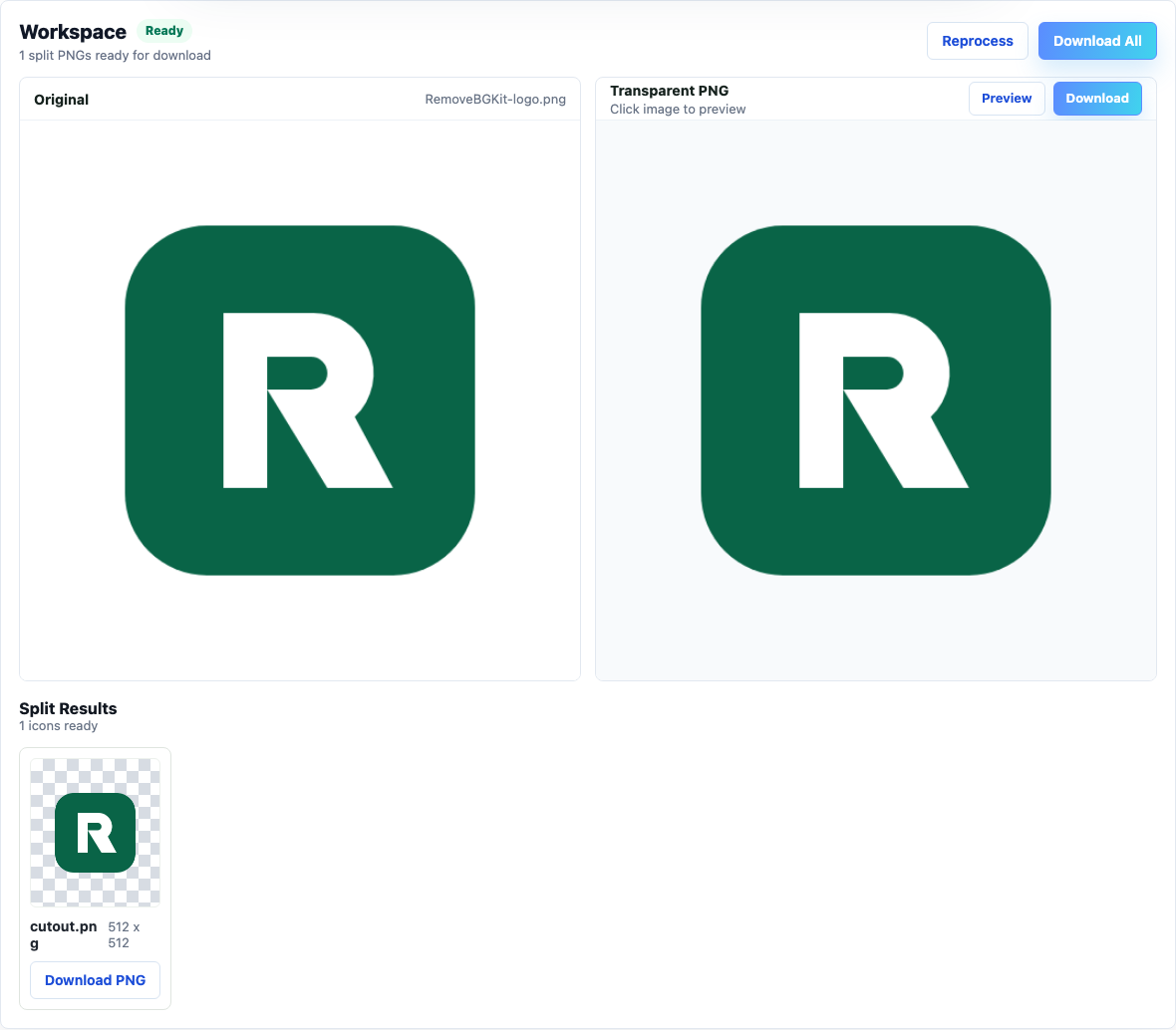
1. Upload your logo
Open RemoveBGKit, choose Pick image to process, and upload a clear PNG or JPG. Processing starts automatically. A crisp original gives small letters and edges the best chance of staying clean.
Export an SVG logo to PNG first; the upload screen accepts raster images.
2. Inspect the transparent preview
Compare Original with Transparent PNG, then open Preview to check the edges and lettering. The background should disappear without fading the artwork.
- Letters and thin strokes remain readable.
- Unwanted background spaces are clear.
- White details belonging to the logo remain intact.
3. Download and check it in your design
Choose Download beside Transparent PNG and place the file on your website or slide background.
In our October 5, 2026 live-service test with auto mode and pro quality, the outer white background became transparent. The solid green and white areas retained their colors and full opacity. The image stayed 512 by 512 pixels. The green badge is part of the logo, so it stays.
This is a verified result for a flat logo on a solid background. Gradients, shadows, and complex artwork may produce different results. Inspect your own output before using it; the website has no manual restore brush.

Does converting JPG to PNG remove the background?
No. Background removal changes the image; PNG stores the transparent result. Renaming a JPG or simply converting its format leaves the background in place.