PNG troubleshooting
Why does my transparent PNG still have a white background?
A PNG that looks white is not necessarily broken. Your viewer may simply display transparent areas on white. Before removing the background again, test the downloaded file over two contrasting colors. This separates a display issue from white pixels actually saved in the image.
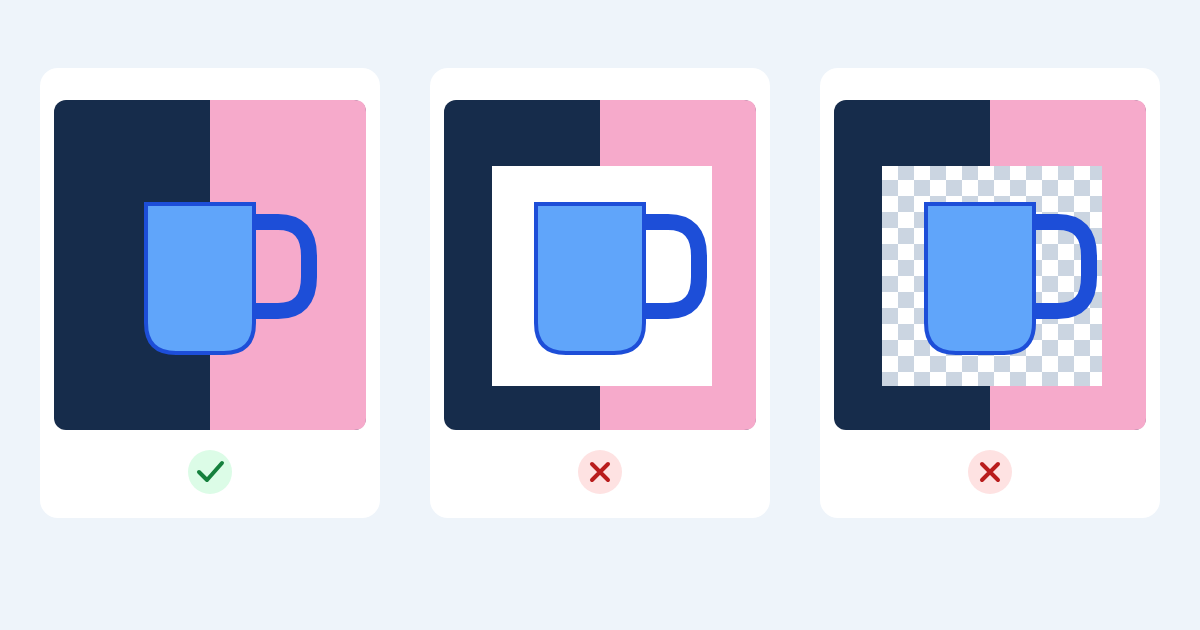
1. Test the downloaded file, not just the preview
Open an editor that supports layers. Create a dark blue or black background, then place your downloaded PNG above it as a separate image layer. Do not paste a screenshot of the removal tool. Change the background to a bright color, such as pink, and compare the same empty area around the subject.
If both colors show through, that area is transparent. If a white rectangle stays in place, the file contains an opaque background in that area, or the importing app has flattened it. Try the same original download in a second editor before processing it again.
- Keep the subject layer separate from the test background.
- Check gaps inside handles, between fingers, and around hair.
- Remove or hide the test background before exporting a transparent copy.
2. Understand what PNG actually preserves
PNG supports transparency, but it can also contain a completely opaque image. The W3C specification describes several PNG color types, including types with alpha information. The extension alone therefore cannot tell you whether the background was removed.
A white viewer canvas can look exactly like a white image background. Use the color test above rather than judging a thumbnail or an image opened in a blank browser tab.
3. Check whether the checkerboard is part of the image
Editors often use gray and white squares to represent empty space. Those squares can also be ordinary pixels, especially in a downloaded preview or screenshot. A checkerboard is a visual cue, not proof of transparency.
Put the image over your colored test layer. If the squares remain visible and block the color underneath, the pattern is baked into the file. Return to the source and download the actual transparent asset, or remove that pattern as a background. Renaming the file will not remove it.
4. Avoid losing transparency when saving or sharing
MDN documents PNG transparency support and lists ordinary JPEG as having no transparency support. Exporting a cutout as JPEG therefore cannot preserve its transparent areas. Changing a .jpg extension to .png does not restore them.
Keep your original PNG download. If a copy stops passing the color test after editing, uploading, or sharing, compare it with that original. Check export options for transparency and make sure a white background layer was not included. Save a fresh PNG and reopen the saved file to verify it.
5. Separate a white halo from a white background
A narrow pale outline around a subject is a different problem from a solid rectangular background. If the surrounding color shows through but a light fringe remains at the edge, inspect the cutout at 100% zoom on both light and dark backgrounds.
Use an editor with edge or mask controls to adjust the affected boundary, if needed. Work gently around hair and translucent material so you do not erase useful detail. Keep a separate working copy: exporting as PNG preserves the result, but does not automatically clean an imperfect cutout.
Making a logo transparent: source artwork, color selection, and lettering checks →